How to deposit funds into your balance?
Adding funds to your Balance is quick and always free. You can deposit into your CAD Balance or your USD Balance — the steps are the same, and the only difference is the deposit method available for each.
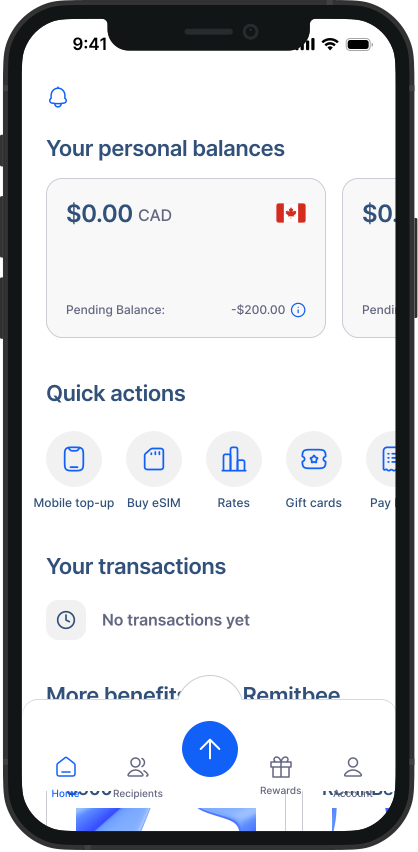
1. Open your Balance: Log in and tap the CAD Balance or USD Balance card on your home screen.
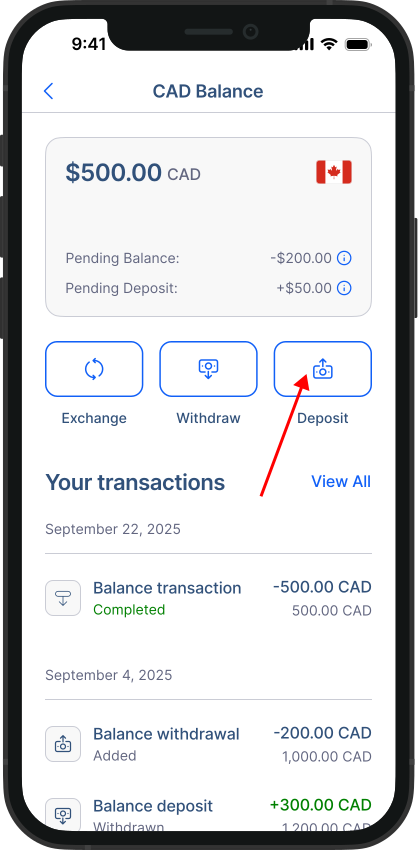
2. Start the deposit: On your Balance screen you'll see your current balance and recent transactions. Tap the Deposit button.
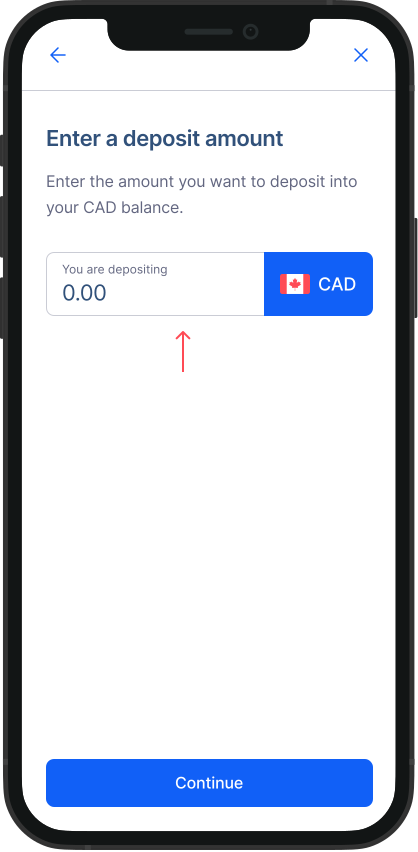
3. Enter the amount: Type in the amount you'd like to add to your Balance.
Note: The minimum deposit for your USD Balance is $10 USD.
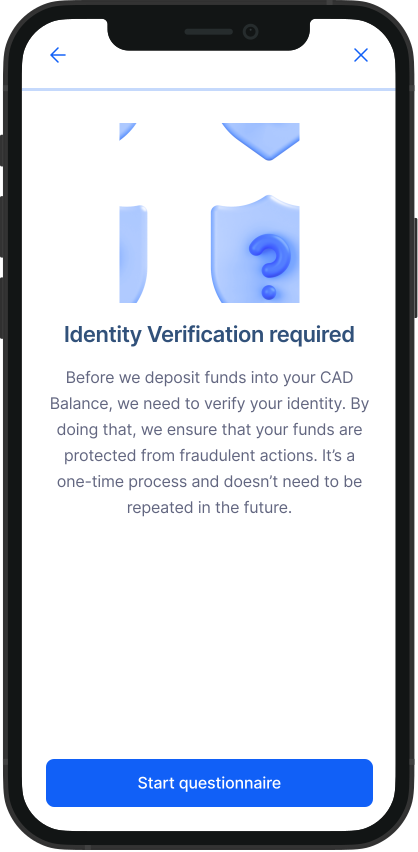
4. Verify your account if needed: If your account isn't verified yet, you'll be asked to complete a quick verification. Just follow the on-screen steps — this is a one-time process.
5. Choose your payment method: Select how you'd like to fund your Balance (the options depend on your currency — see below).
| Balance | Available methods | Speed |
|---|---|---|
| CAD Balance | Interac e-Transfer, Direct Withdrawal (EFT), Bill Payment | e-Transfer: ~15 minutes · Bill Payment: 1 business day · EFT: 2 business days |
| USD Balance | Direct Withdrawal (EFT) only | EFT: 2 business days |
6. Follow the payment instructions: Depending on the method you chose, you'll see a screen with instructions. Follow them to complete your deposit.
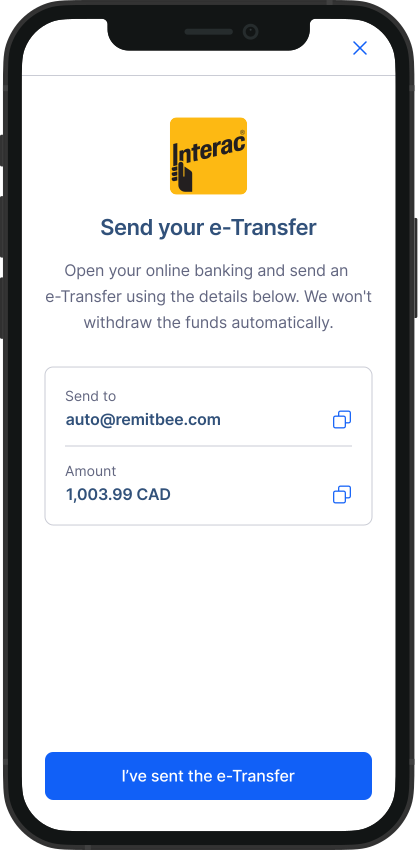
Congratulations! You've successfully added funds to your Balance.