How to exchange between your CAD and USD Balance
You can move money between your CAD Balance and USD Balance whenever you like — there's no fee to exchange between your own Balances.
Exchange between your Balances, step by step
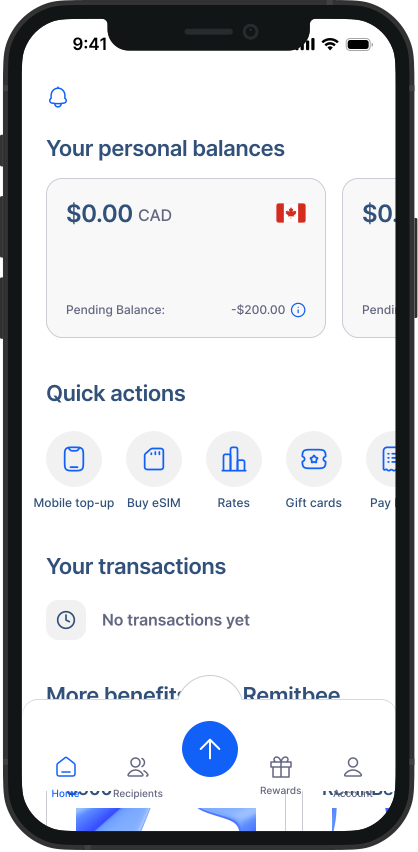
1. Open a Balance: From your home screen, tap the CAD Balance or USD Balance card, depending on which one you want to exchange from.
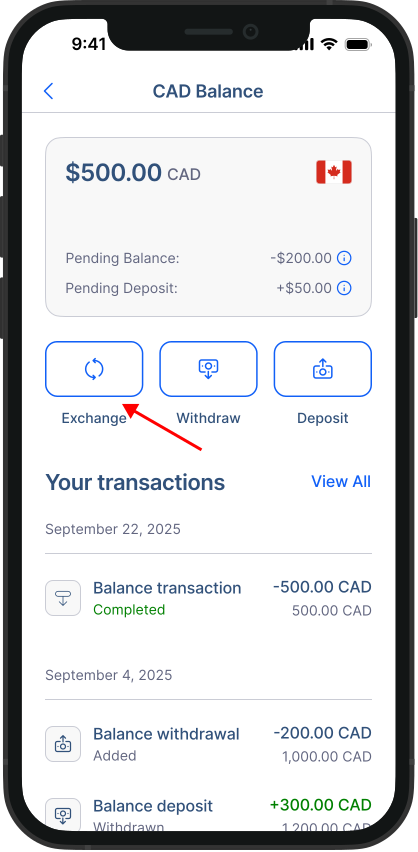
2. Start the exchange: On your Balance screen, tap the Exchange button.
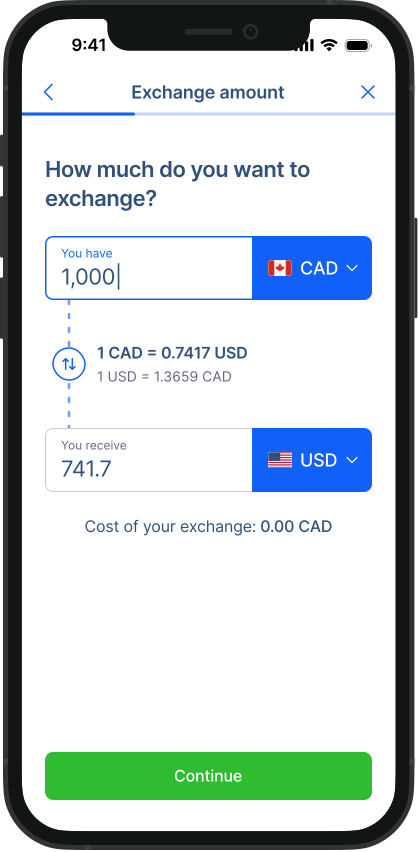
3. Enter the amount: Type in the amount you want to exchange and review the rate.
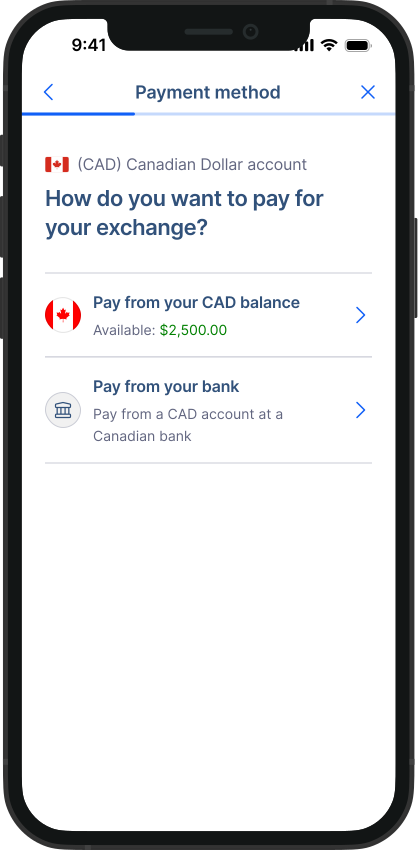
4. Pay from and deposit to your Balances: Choose to pay from the Balance you're exchanging from and deposit into your other Balance.
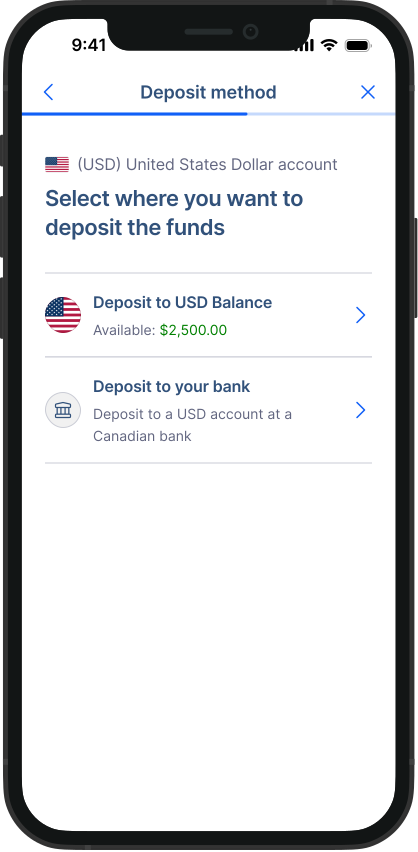
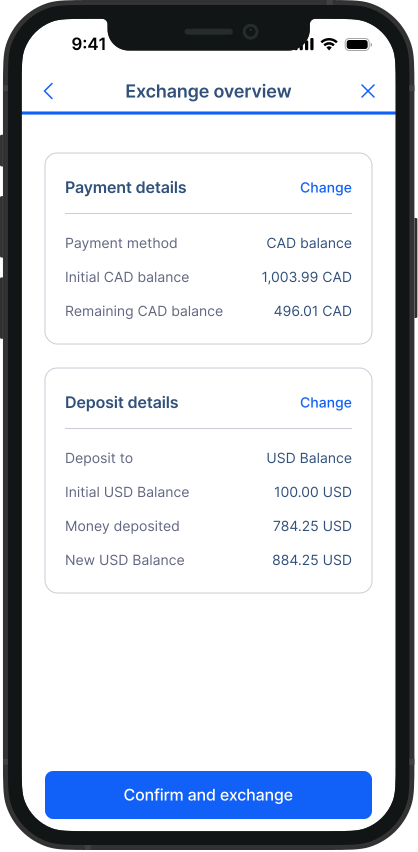
5. Review and confirm: Check the details and confirm your exchange.
Important: When you pay from a Balance, the funds are converted instantly the moment you confirm. Because the conversion happens right away, a Balance-funded exchange can't be cancelled.
Good to know: The exchange appears in your transaction history as a Currency Exchange, and shows in each Balance as a linked entry pointing to that exchange.
Congratulations! You've successfully exchanged funds between your Balances.